October 09, 2010

How to Create a Photo Collage

I'm drawing a blank tonight. Go figure. So, I thought I would write out a tutorial for you all. Sound good?

Tonight I am going to show you how to create a photo collage! And you will be happy to know, it's a very easy thing to do!

Have you heard of Picasa? I love this program {almost as much as I love Photoshop}. It's a great program that manages your collection of digital pictures, and it can also do some very simple editing.

Photobucket
I use Photoshop for most of my editing, but when it comes to creating photo collages, I prefer Picasa. I honestly think Picasa does just as good of a job creating simple collages as Photoshop. But really, the main reason I love using Picasa to create my collages is because it does all the work for me. :) I'm lazy like that.

So, let's get downloading and start playing in Picasa to create some photo collages!

Click here to download Picasa. And in case you are wondering, it is free!

Now that you have downloaded Picasa, all of your pictures on your computer should automatically load into it. Here is the getting started guide in case you have any questions about Picasa.

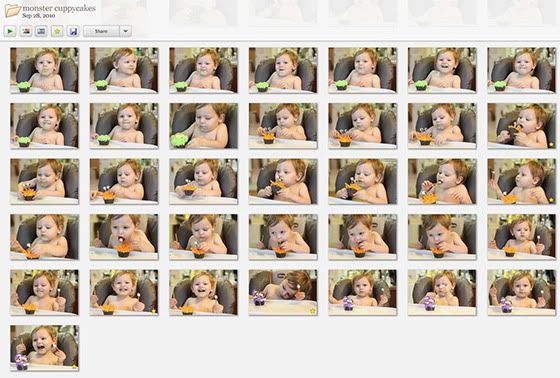
Once you are in Picasa, on the very left side of the window, you will see a list of folders. You can use these folders to organize your pictures by date or name. The folder I'm showing you below is labeled "Monster Cuppycakes." I am going to choose three pictures of Noah eating his cupcakes for my collage. You can use however many pictures you want.
Photobucket

First, click on a picture. After you do that, the first picture will be highlighted. Then you will hit the CTRL button on your keyboard while you click the remaining pictures.

Note: When you hit the CTRL button, don't let go of it until you finish clicking all the pictures you want to use for the collage.

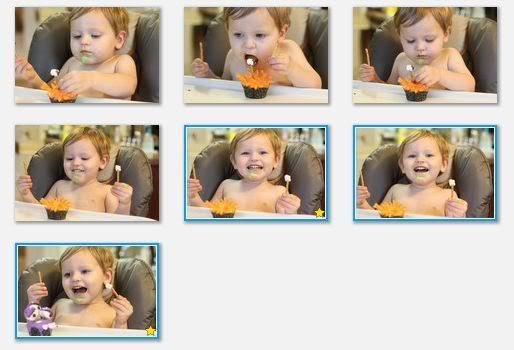
Once you finish clicking all the pictures you want to use for your collage, they will all be highlighted like mine are below. You can then release the CTRL button.
Photobucket

Now that my pictures {and yours!} are highlighted, we are ready to make a collage.

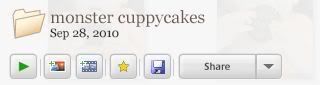
Above all of the pictures, you will see the folder name. Like I mentioned before, my folder name is called, "Monster Cuppycakes." You will see a bunch of buttons under the title of the folder, click the second button {right next to the green arrow}.
Photobucket

This is the "Create Photo Collage" button.

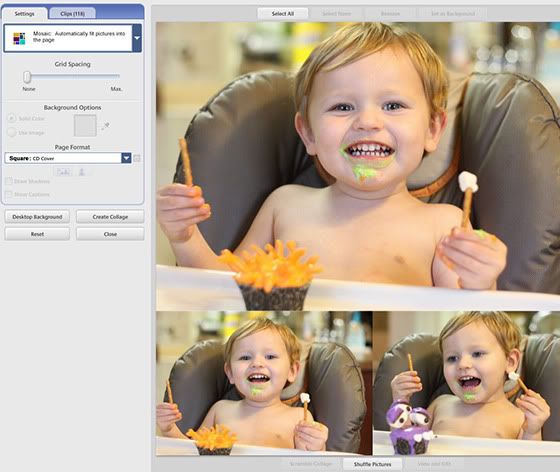
Once you click that button, it will automatically put your pictures into a collage like mine below.
Photobucket

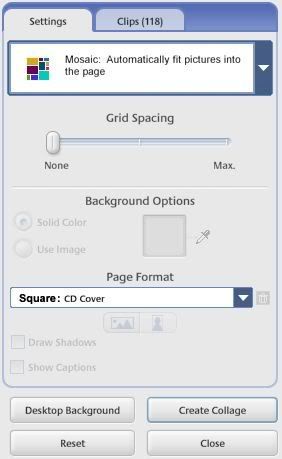
On the left side of your photo collage, there is a "Settings" box. There are many options to choose from in this little box. This allows you to customize your photo collage. Play around with all of the settings. That's the fun part!
Photobucket

Also, under the photo collage, there is a button you can push called, "Shuffle Pictures." It randomly creates different collage layouts with your pictures, and you can click it over and over again until you like how your collage looks.

Removing and Adding Pictures to your Collage:
If you have a picture in your collage that you decide you don't want anymore, just click the picture {this will highlight it} and push the "Remove" button located above the collage.

If you want to add more pictures to your collage, click the tab "Clips" in the Settings Box. Then you can click "Get more..." and it will take you to the folders where you can pick different pictures.

Once you are done playing with the settings and you are happy with your collage, then click the button "Create Collage" which is located in the Settings Box.

After Picasa has created the collage, it automatically exports it into an image. On your computer, locate your "Pictures" folder, and find the folder labeled "Picasa." Then there should be a folder labeled "Collages." Click that folder and you should be able to find your collage there.

Then you can upload the collage to either Photobucket or Flickr {whichever you prefer}. You may need to resize your collage before you put it into your blog post. This tutorial will help you learn how to resize images if you don't know how.

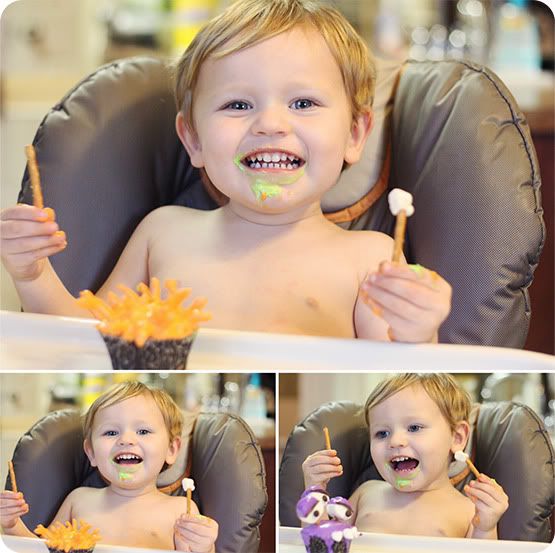
Here is my finished collage!
Photobucket

If you have any questions, don't hesitate to leave me a comment below or send me an email. I'm happy to help!

Have fun creating your collages! I can't wait to see them.

Photobucket

p.s. The Hidden Cupcake Giveaway is now closed! A winner will randomly be selected and announced sometime Monday {October 11th}. Thanks to all who entered and good luck! Oh, and there is a new menu up for this week. :)

October 07, 2010

Halloween Favorites

Photobucket
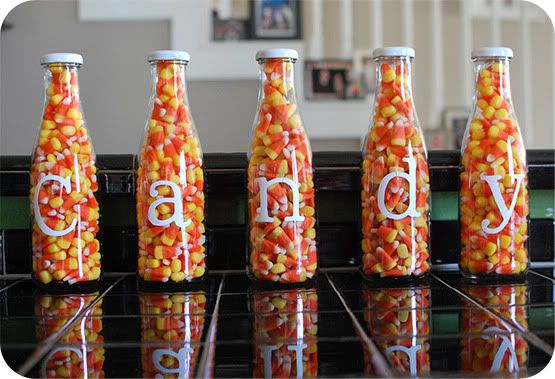
I love this simple, inexpensive way to display your Halloween candy
created by Kelli of Random Thoughts of a Supermom. Check it out here.

Photobucket
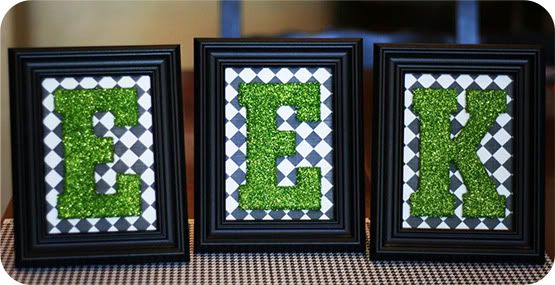
eighteen25 came up with these frightfully fun frames-- aren't they adorable?!
Check out their blog and see how they made them.

Photobucket
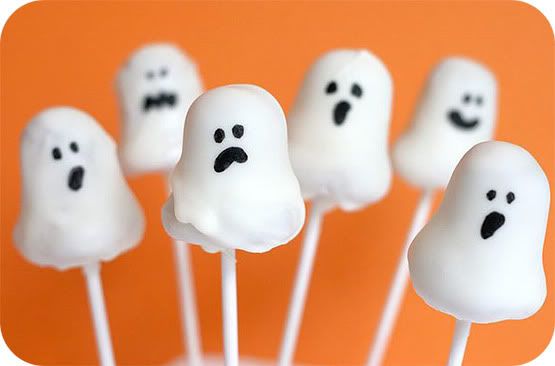
Ahhh Bakeralla and her ghost cake pops. Need I say more? She's amazing!
Now you can make them too with a little help from her new book Cake Pops.

Photobucket
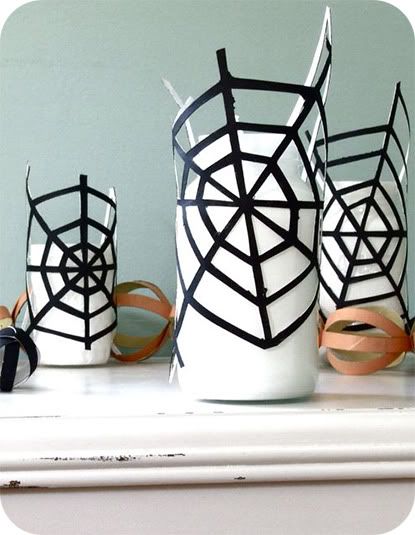
Take this quick and easy tutorial with Michele from
Michele Made Me to learn how to make a web/spidery lantern.
What a cute, creative idea!

Photobucket
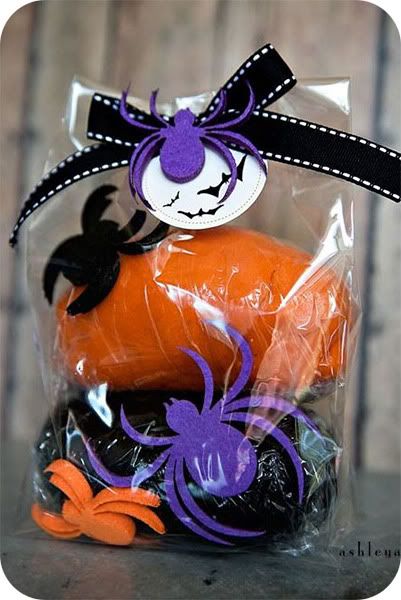
This next idea is off the charts cuuuuute from it is what it is!
Plop a few stickers from Michael's on top of some Reese's
and you got yourself some cute Halloween candy favors.
Download the custom tag for free!

Photobucket
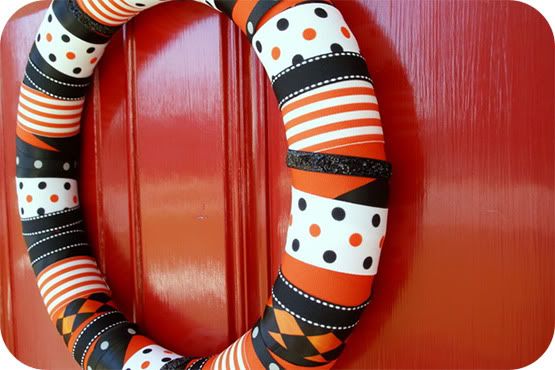
I heart this Halloween inspired Ribbon Wreath very much. It is oh so perfect
in every way! I want one for my door! Kristi from The Speckled Dog created
this wreath with a little inspiration from "The Boo Wreath" in the Oct/Nov
issue of Simply Handmade.

Photobucket
Ashley from Under the Sycamore {definitely a favorite read of mine!}
makes up a batch of Halloween Play Dough to give out as gifts as an
alternative to candy. See how she does it here. LOVE this idea!

Photobucket
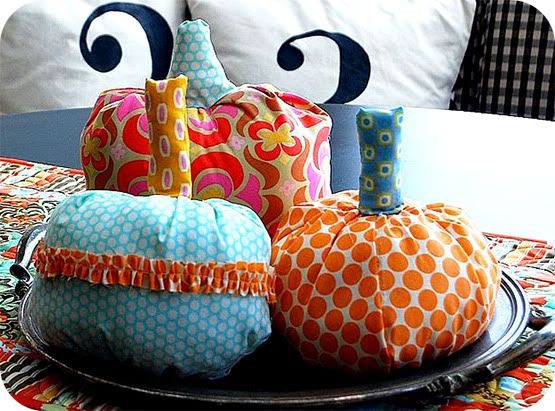
Learn how to make these adorable ruffled fabric pumpkins
with Jen at Tatortots and Jello.

Photobucket
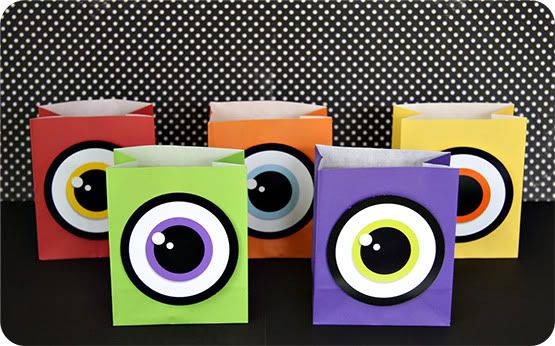
Another monster idea... I just can't resist them! Make these
one eyed monster treat bags with Beth at it is what it is.
Download the eyes for free here.

Photobucket
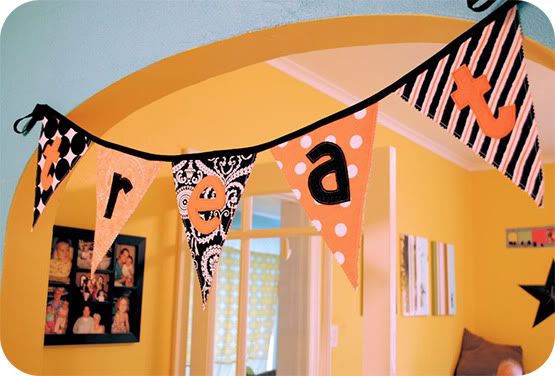
This Halloween reversible Trick or Treat bunting banner is fabulous! I love how
you can see "treat" on one side and "trick" on the other. Such a cute idea!
Check out Jen's adorable blog here.

Photobucket

If you don't know who Kim from The TomKat Studio is, then you are missing out!
She is one creative and very talented woman! You must go check her blog out!
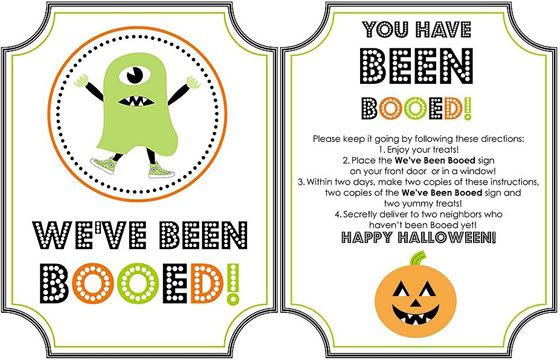
I love the idea she came up with: We've Been Booed! Read about it here.

She created the cute printable templates you see above for you to print out!
Told you she's amazing! Click here to get this fun freebie!

All of these ladies are so talented. What great ideas!
Which one is your favorite?

Photobucket

October 06, 2010

Helloooo Terrible Twos

Temper tantrums-- check
Frequent mood changes-- check
Testing the limits-- oh boy! definitely a check

Photobucket

Helloooo Terrible Twos!
Not sure I'm ready for this.

Photobucket

October 03, 2010

The Hidden Cupcake Giveaway

Happy Monday!
I think we should start off our morning
with a super fun giveaway!

I am so excited about this one,
I can hardly stand it.

But first things first, I want to say "Thank you!!!"
Last night our little ol' blog hit 100 followers!!
I can hardly believe my eyes. It has been so much
fun watching it grow. When I first started writing,
I never in my wildest dreams thought it would grow the
way it has. Josh told me just the other day, "I remember
when you had like five people reading your blog." So, thank
you for reading and for taking an interest in our lives.

Not only are we going to celebrate today, but I also have
a really, really, really {I mean, really} fabulous giveaway
at the end of this month. It's top secret though. :)

Thank you again!

So, let's get on with today's giveaway!

Have you ever heard of "The Hidden Cupcake?"
If not, you are in for a treat.

Photobucket

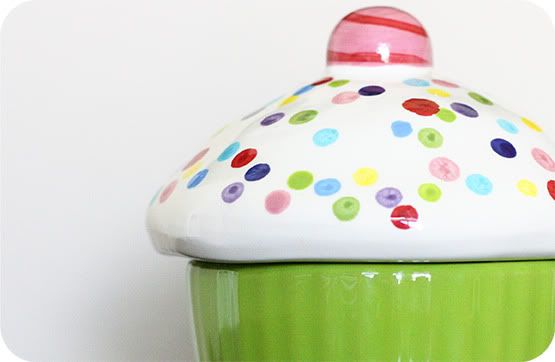
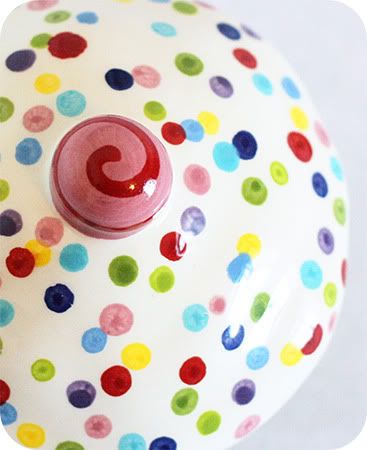
The Hidden Cupcake is the cutest little ceramic
cupcake I've ever laid my eyes on.

But, what I love most about this little cupcake is the story
behind it and the fun family tradition it holds.

Two creative friends, Susan Peterson & Cabell Sweeney,
dreamed up the tradition of The Hidden Cupcake.

Photobucket

Here is their story
{by Susan}:

Cabell and I love family traditions, and we love giving
gifts. One day I walked into the studio and the cupcake was sitting
on her desk. She had created it but really didn't know what to do
with it. We both instantly LOVED it! It's so whimsical and fun, and
we just started dreaming about what you could put inside the cupcake
to give to someone you love, and then we started talking about how fun it would
be to open the cupcake and see that there was a gift inside!

From that moment on, we started dreaming until we realized that
hiding it and having a child or a loved one find it would be so
much fun! So, I took it home, and since my daughter's birthday was
around the corner, we made a game of it. I showed her and my son the
cupcake, told them there would be a surprise in it when they got home
from school and that Hannah would have to find it to get the surprise.

They were so excited; they even remembered it
when I picked them up from school!
Needless to say, the hunt was on, and it was great fun. I think I put
a certificate in there for her to have her nails painted. She loved
it. My son's birthday was only a week later, so you can imagine that
it didn't take much to make the tradition come alive for us!
So, now the cupcake sits on my daughter's nightstand - waiting for the
next birthday or special occasion. It's really been fun.
It has definitely been one of the more special pieces
we have ever created."

Photobucket

I love it, don't you?!

There are so many fun things you could fill
The Hidden Cupcake with:

A coupon for ice cream
A piece of jewelry
Bubble gum, gummy bears, or jelly beans
Tickets to a movie, game, or concert
A gift card to a favorite store
An action figure or bouncy ball
Car keys { hint hint Josh :) }
Nail polish or Lip Gloss
A photo of a gift that is too big for the cupcake
A note that says I love you
The possibilities are endless!
-- Hidden Cupcake Box

So much fun!!

Not long ago, my mom bought a Hidden Cupcake for our family.
Needless to say, I can't wait to use it!

So, the question is, do you want one?

Susan and Cabell are generously giving
away a Hidden Cupcake to one lucky winner!

Photobucket

So, I'm gonna make it easy on you.
Here is what you have to do to enter:

1. Check out Cabell's Designs
{soooo many cute things!}
by clicking here.

2. Tell me who you would give The Hidden Cupcake to
-and-
what special little gift you would put inside it?

Giveaway will close Saturday, October 9th, 2010
at midnight (CST).

Good luck everyone!!

Photobucket

October 02, 2010

Magic in a Tube

This little tube of Toy Story toothpaste...

Photobucket

... is magic in a bottle.

If you've been reading our blog for a while now, you
know our little Noah hates getting his teeth brushed.

But one thing Noah loves is Toy Story.

While Noah was at Mother's Day Out on Wednesday, Josh and I ran
to Walmart {is that considered a date?} to get a few things.

Anyway, one thing on my list to get was toothpaste.
As we were walking down the aisle, we spotted
Noah's beloved Toy Story characters: Woody and Buzz.

Josh and I just looked at each other and smiled.

Maybe, just maybe, Woody and Buzz would do the trick.

And, well, as you can see:

Photobucket

Woody and Buzz were a success!!

Noah hasn't cried once since we started using
Toy Story toothpaste. And now, he even opens his
mouth for me and makes the cutest little noises
{oooh and ahhh} while I'm brushing his teeth.

And speaking of Toy Story, look what we found
while we were out shopping tonight?

Photobucket

A toy story lunch box for Mother's Day Out!

Of course, Noah loved it and wanted to hold it
in his lap while we walked through the mall.
{Did you see that big 'ol sucker in his mouth?
That's why it was so important we figure
out a way to brush those teeth!}

Oh Toy Story, you're a lifesaver.

Photobucket

October 01, 2010

Basic HTML Help

Here I am with some more blog help! I have been asked several questions, so I thought I would go ahead and answer all three in one tutorial. Sound good? Okay, let's get started.

How do you cross out a word in blogger?

You use this simple bit of html code:

Photobucket

Click edit html {the tab next to compose} and add the code where you want to cross out a word. For example, the word I want to cross out is Blogger, so I'll put the word Blogger between the two words strike, like this:

Photobucket

Once you've done that, it will look like this: Blogger

That was easy, huh? Want more? Okay, let's keep going.

How do I link to a blog or website in my post?

Okay, see the little green, world-looking icon on the very left? Good. Remember that icon.. we will talk about it again.

Photobucket

The tool bar you see above, is located right below the title of your post.

Before we talk about linking, go ahead and copy and paste the url {for example: www.playgrounder.com} of whatever you want to link.

Now, select the word or words you want to make into a link. Once you have highlighted the word(s), then you will click that little icon we talked about a few minutes ago {you know, the little green world}.

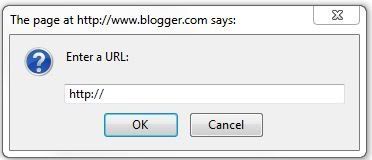
When you click the icon, this box will show up:

Photobucket

In that box, copy and paste the url you want to link and then click ok.

You now have a link! Also, once you have your link, highlight it, and click the icon to the very left of your green world {the one with the T and a bunch of colors}. Pick a color {I usually pick blue just because that is the color most commonly used for hyperlinks}, and now your link will be a different color than the rest of your text in your post.

Now that I have made my link, how do I get it to open up in a new window/tab?

This is not something you have to do, but I always do it so that when people click on a link in one of my posts, they don't leave my blog. I mean, do you really want your readers leaving your blog for another site and not coming back? Of course not! Opening a link in a new window/tab just makes it easier for a reader to get back to your blog. Does that make any sense?

Let me just show you.

The code I am about to give you will be your new best friend. I use it all. the. time. The code to open up a new window/tab is: target="_blank"

It's a simple little code, isn't it?

Here is a random sentence I used in a previous post where I used this code:

"So, get your craft on and click here for all the fun."

This is what this sentence looks like under the edit html tab:

Photobucket

See the code in there? It looks like this: "target="_blank"

So, when you want to add this code into your sentence, look for the word that is linked {in the sentence above it is here}, and then copy and paste target="_blank" right in front of the link.

Seems a little complicated at first, but it is not at all. It's very easy, and it really does make a big difference when your readers click your links.

Once you click the compose tab and then preview below it, you will be able to click the link and it should open up a new tab.

I think we will leave it at that and let you work on these things before we move on to other stuff. Let me know if there is anything specific you would like me to cover. Don't be shy. I need more tutorial ideas.

Have a lovely day, and make those blogs pretty!

Photobucket

p.s. I am guest blogging at Funky Polkadot Giraffe around 5 pm today {Oct. 1st}, so come on over and visit. Kyla has been having a blog par-tay this week, full of giveaways and tutorials. You don't want to miss it! Also, check out her awesome cupcake blog! {I'm over there too!}